
What if your notes had the ability to think? What if they could summarize themselves, produce new ideas, and even manage your duties for you? Welcome to Notion 2.0. This is a significant change that will transform your preferred workplace from a passive document collector into an intelligent, active collaborator. To put it simply, Notion 2.0 is an advanced version of Notion that uses strong, integrated AI to work for you rather than against you.
This is the time when your workflow finally catches up to your goals for creators, students, and teams (particularly those in the US seeking a productivity edge). It’s not simply a new feature; it’s a new method of functioning.
Notion 2.0 in One Minute
This is a high-level explanation of what “Notion 2.0” actually entails for you:
- ⚡ AI Notes: From your existing content, quickly summarize, translate, identify action items, and generate new ideas.
- 🤖 Workflows: Automate code-free repetitive chores. Consider this: “When this task is marked ‘Done,’ automatically move it to the archive.”
- 📈 Autofill: Automatically add AI-generated information, such as summaries or keyword tags, to your databases and tables.
- 🔄 Smart Sync: Connect all your tools (including Google Calendar, Jira, and Slack) for a truly unified and synced command center.
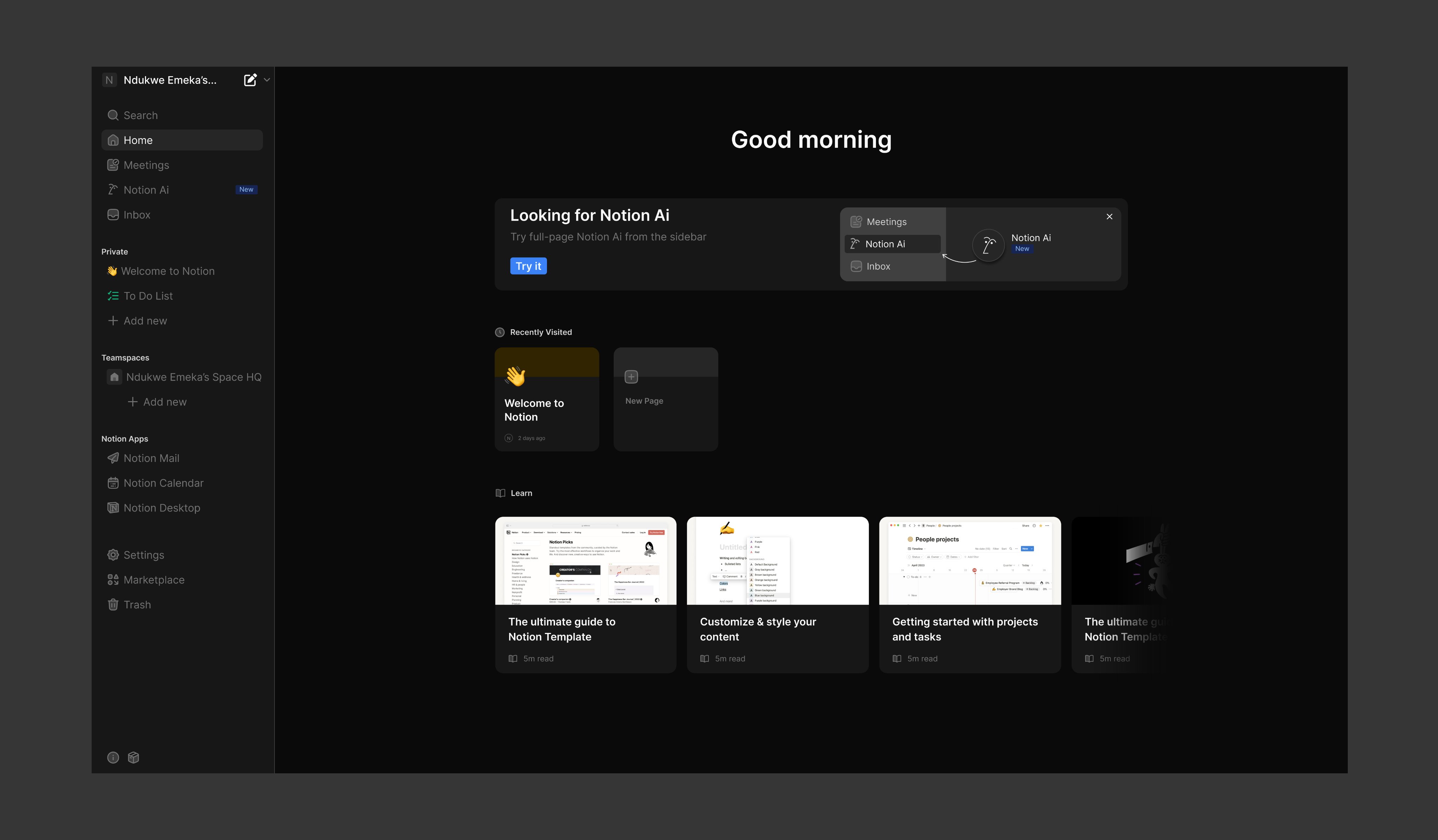
The “2.0” Leap → What’s Actually New?
To be clear, “Notion 2.0” is not the official brand name that appears on their website. It is the word used by the community to describe the significant, AI-driven evolution that has fundamentally altered the platform. Notion 2.0 is the same set of digital LEGOs as the “old” Notion, but it now includes a robotic helper to assist in construction.
The key change is the shift from manual to automatic.
Here is a little contrast between the traditional experience and this new AI-powered era.
Old Notion vs. Notion 2.0 (The AI Evolution)
| Feature | Notion 2.0 (The AI Evolution) | Old Notion |
|---|---|---|
| Notes | AI Notes (action items, summaries) | Static text blocks |
| Databases | Autofill (properties driven by artificial intelligence) | Manual data entry |
| Tasks | Workflows (Automated task generation) | Manual creation & sorting |
| Integration | Smart Sync (Deep, two-way data flow) | Basic embeds and links |
| Collaboration | AI-Assisted Collaboration (Auto-syncs) | Comments & mentions |
1. AI Notes → Your New Brainstorming Partner
This is the main attraction. In your Notion page, you may now highlight any text, click “Ask AI,” and select from a lengthy variety of commands. Or, you can press /ai (the slash command) to open a whole new universe of AI blocks.
- Summarize: Instantly acquire a high-level summary of a big research piece.
- Find action items: Pull out every task or to-do from a jumbled meeting transcript.
- Change tone: Turn your rough bullet points into a professional email or a casual blog article.
- Generate ideas: Are you stuck? Request that AI “brainstorm 5 blog titles based on this paragraph.”
As Google’s creator guides underscore, listening to your audience is key. You may paste in user comments or survey responses and ask Notion AI to “Find the top 5 most common pain points from this text.” This is a game-changer for creating the high-quality, meaningful content your audience is wanting. One of the greatest AI writing assistance tools integrated within a productivity app, without a doubt.
The 3-in-1 AI Synopsis:
Try this prompt on your next page of notes. Simply select “Ask AI,” highlight your text, and insert the following:
"Analyze the text above. Extract the top 3 key takeaways, a list of all action items with owners (if any), and a one-paragraph summary for an executive email."
Creators’ Advanced AI Prompt Library
The real power isn’t simply using AI; it’s directing it. Here are some effective, copyable prompts for different roles.
🤖 Regarding the Content Author:
"Analyze the following 10 user comments from my YouTube channel. Identify the top 3 recurring pain points. Then, draft 5 engaging blog post titles that directly address these pain points and spark curiosity."📈 Regarding the Marketer:
"Act as an expert SEO copywriter. Based on the target keyword 'Best AI tools for business' and the rough draft below, write an SEO-optimized meta description (under 155 characters) and 3 compelling H2 headings that target common user questions (e.g., 'What is...', 'How to...')."Regarding the Project Manager:
"Review these disorganized meeting notes. Create a Markdown table with three columns: Action Item, Assigned Owner (if mentioned, otherwise 'TBD'), and Priority (High/Medium/Low). At the end, add a one-sentence summary of the meeting's primary goal."Also Read: How to use Grok 4.1 for Coding: Best Prompts for Real Income
2. Smart Workflows & Autofill → The End of Busywork
This is where Notion 2.0 truly starts to feel like magic.
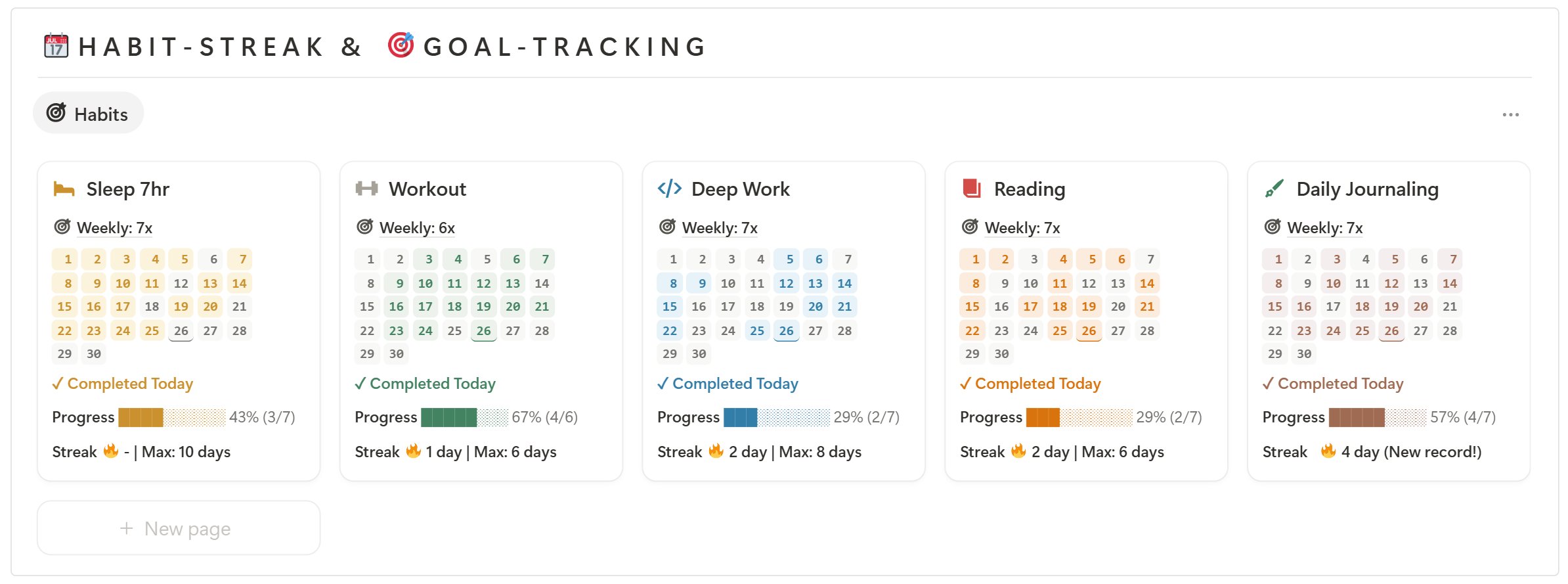
Autofill allows you add a new “AI” property to any database. It can be configured to produce material automatically using other properties.
Example: Imagine a content calendar database. The “Title” field is where you insert the title of your blog article. You can have a column called “AI Summary” that automatically generates a summary of one to two sentences, and another called “AI Keywords” that automatically recommends five to ten pertinent keywords.
Workflows take this a step further, automating actions between databases and programs. At this point, Notion begins to face competition from specialized digital marketing automation tools.
Growth depends on this emphasis on automation. Leading bloggers will tell you that consistency is everything. You may devote more mental energy to what really matters—producing genuine content and interacting with your community—by automating the tedious tasks.
Guide → Establish Your Initial Workflow (Auto-Assigning a Task)
Let’s create a straightforward process that automatically assigns an editor to assess a new blog idea. This serves as a basic notion 2.0 tutorial for getting started with automation in Notion 2.0.
- Establish a database named “Content Pipeline.” Include a “Status” attribute (a “Select” type) with choices such as “Idea,” “Drafting,” “In Review,” and “Published.” Add a “Person” property called ‘Editor’.
- To locate automations, select the … menu located in the upper-right corner of your database. Choose ‘Automations’.
- Set the Trigger: Click ‘+ New automation’. Select “Add trigger.” Choose the ‘Status’ attribute. Choose ‘Is’ and then ‘In Review’ for the trigger.
- Set the Action: Now that the trigger is set (When Status is set to ‘In Review’…), click ‘+ Add action’. Select ‘Set property’ -> ‘Editor’ -> and then choose the person on your team you want to assign (e.g., ‘@Jane Doe’).
- Save and Test: Click ‘Create’. Now, go back to your database. The next time you drag a new ‘Idea’ into the ‘In Review’ column, it will automatically designate Jane Doe as the editor.
Even though this is a basic example, the power is evident. You may chain these actions to send Slack notifications, create new tasks, and more.
3. Your One Command Center → Smart Sync
Integrations with the “old” Notion were frequently only one-way embeds. A true two-way connection is Smart Sync. It makes Notion the focal point against which all of your other SaaS comparison 2025 articles must be evaluated.
Integration with Google Calendar
For the majority of users, this is the major one. You may now have a Notion database (such your “Content Pipeline” or “Meeting Notes”) sync directly with your Google Calendar.
The connection is authorized by you. You tell Notion which database and which ‘Date’ property to utilize.
- The Use Case: An event automatically appears on your Google Calendar when you add a new entry to your “Content Pipeline” database and assign it a “Publish Date.” If you reschedule it by dragging it on your Google Calendar, the date automatically updates back in Notion. No more double-entry.
Integration of Slack and Jira
This is critical for teams adopting Notion as a productivity software review-worthy project manager.
- Slack: You can create a workflow that does more than just assign tasks, such as the one we just created. The final action can be “Send a Slack notification” to a specific channel (e.g., #content-review) that states, “Hey @Jane Doe, the new post ‘[Title]’ is ready for your review.”
- Jira is a game-changer for marketing and tech teams. The Jira backlog of your engineering team and the Notion roadmap of your marketing team can be synchronized. When an engineer updates a ticket in Jira, the status may automatically update in the Notion database, keeping everyone in the loop without switching apps.
How to Begin → Your 20-Second Flowchart
Are you feeling overburdened? Avoid becoming. It is quite easy to use the fundamental AI functions. For a quick notion 2.0 tutorial, follow this simple process to dive into Notion 2.0.
Flowchart Text: “Open a New Page” → “Type ‘/’ (slash command)” → “Select a ‘AI Block’ (like ‘Summary’ or ‘Action Items’)” → “Paste your text or start writing” → “Click ‘Generate’ & Watch the Magic!”
Also Read: How to use ChatGPT 5.1 for Content Creation: Prompts & Flow

The Good & The Bad → A Quick Pros & Cons Strip
No tool is flawless. This is a quick, scannable summary for 2025.
Pros:
- ✅ Massive time-saver: AI summaries and autofill reduce down on manual work.
- ✅ Breaks down complex info: The “Explain this” tool is gold for beginners.
- ✅ Automates repetitious tasks: Workflows ultimately make automation accessible.
- ✅ Centralizes your digital life: Smart Sync combines your other apps into Notion.
- ✅ Excellent for creators: The tools for content creation and SEO are excellent.
Cons:
- ❌ It’s not free: The finest AI features are a premium add-on to your Notion plan.
- ❌ Learning curve: Workflows are powerful but might be perplexing for total beginners.
- ❌ AI can make mistakes: Verify the accuracy of AI-generated content twice!
- ❌ Search is still… okay: AI-powered search (Q&A) is better, but regular search can still be slow.
Best Free & Paid Notion Templates Sources
These are the top, reliable sources where developers genuinely submit high-quality templates that you may use or perhaps start selling if you want to quickly improve your Notion skills using both free and paid templates.
🌟 Curated & Official Template Hubs
These are enormous, reliable, and secure collections:
- The Official Template Gallery of Notion
Click the Templates tab in the sidebar of Notion to search for anything, including business suites, planners, dashboards, student systems, finance tools, and productivity. Many are free, while others are also pricey. - Notionhub
A vast collection of both free and paid templates, ranging from sophisticated business and project systems to finance dashboards and habit trackers. Notionhub - The Notionland
Finding particular resources (content planners, resumes, business kits, etc.) is made easier with this clear marketplace that has filters that allow you to browse by free and paid. - Notiontemplates.io
sophisticated marketplace with high-quality templates for business setups, life management, productivity, and more. Notion Templates 💡 Additional Excellent Free & Paid Choices - LemonSqueezy & Gumroad
Look up “Notion template”; many developers (such as planners, aesthetic dashboards, second brains, and team OS) provide both free and paid versions. The most well-liked marketplace for independent artists is Gumroad. Hello, Abdo - Etsy
It’s not the first place that comes to mind, but it’s full with inexpensive, stylish Notion planners (typically around $10), particularly for students or lifestyle planning. Hello, Abdo - Communities on Reddit
Treasure troves of free templates with direct duplicate links are shared on subreddits like r/Notion, r/FreeNotionTemplates, and r/NotionTemplates (no downloads required).
Pro Tips on Reddit 🧠: Start with official templates with free content from Notionhub to cover 80% of daily use if you’re just looking for quick wins for personal productivity or student life.
You’ll probably have to pay for sophisticated processes (such as business operating systems, second brain systems, and startup dashboards), but if it saves you hours of effort, it’s worth it. 🔁
Don’t download files; always copy templates directly into Notion. Notion templates operate in a safer and more seamless manner.
Setting Up Your Smart Workspace → A Quick Checklist
Are you prepared to modernize your workspace? Take these five easy steps. This checklist doubles as a hands-on notion 2.0 tutorial for new users exploring notion ai.
- Clean Your Setup: Archive old, unused pages. A quick space is one that is clean.
- Enable Notion AI: Go to ‘Settings & Members’ → ‘Upgrade’ and add Notion AI to your plan. (You get a number of free AI activities to try it out initially).
- Master AI Blocks: Practice using the /ai command to see the entire list of options.
- Create Your First Smart Database: Make a small database and attempt an AI ‘Autofill’ property.
- Sync an App: To try the new ‘Smart Sync’ features, connect your Google Calendar.
Features of Notion 2.0 → The Official Zypa Rating
We experimented with all of the new features. This is our official rating and heatmap.
Heatmap of Features:
- AI Notes: 🔥 (Game-changing)
- Workflows: ⚡ (Powerful, but a steep learning curve)
- Autofill: 👍 (extremely practical, extremely helpful)
- Legacy Pages: 😐 (They are still there, but they now feel “old”)
Dynamic Rating Strip:
- AI Notes: ⭐⭐⭐⭐⭐
- Workflows: ⭐⭐⭐⭐
- Search (Q&A): ⭐⭐⭐⭐ (Vastly improved)
- Mobile App: ⭐⭐⭐⭐ (Improving significantly!)
Also Read: NotebookLM Features: Unlock Google’s AI for Faster Research
Our Final Take → Is Notion 2.0 Worth It in 2025?
Yes. Absolutely.
The “old” Notion was a storage device. Notion 2.0 is a tool for service. It actively collaborates with you to manage your responsibilities, organize your thoughts, and produce material more quickly.
This is a significant change for other creators. Building a relationship with your audience by being genuine and human is the finest advise from Google’s own creative team. You have more time to do the human part—engaging, producing, and connecting—by letting Notion 2.0 take care of the data processing, SEO research, and administrative burden. The foundation of intelligent digital growth is this.
🚀 Ready to upgrade? Start your Notion 2.0 tutorial today and unlock notion ai potential!
Are you prepared to learn more about the creator economy? Check out our Zypa blog for more AI News and our assessment of the Top AI Tools for Creators.
Frequently Asked Questions (FAQ)
Is Notion 2.0 available for free?
Notion itself has a substantial free plan for personal use. But Notion AI and other “Notion 2.0” capabilities are an add-on that costs money. Usually costing between $8 and $10 per user every month, you can test it out with a few free AI tasks before committing. The new Smart Sync and Workflow capabilities are also part of premium subscriptions.
Is Notion beneficial for students?
Definitely. It’s among the greatest resources for students out there, and the additional AI features make it even better. In one location, you can manage assignments, schedule classes, take intelligent notes, and even receive AI-powered study assistance. Notion for students shines with notion ai for interactive learning.
What has Notion 2.0 added?
The largest difference is the deep integration of AI and automation. This comprises:
1. In-line AI: Summarizing, translating, and re-writing content on any page.
2. AI Autofill: Automatically filling database properties.
3. Automating tasks between your Notion pages and other apps is known as workflows.
4. Smart Sync: Robust two-way connections with Jira, Slack, and Google Calendar.
5. AI Q&A: A new search tool that enables you ask natural language questions about your own workspace (e.g., “What’s the status of the ‘New Logo’ project?”).




I want this for better understanding of designing
Glad to hear that 😊 This article will definitely help you build a clearer understanding of designing in Notion 2.0. If you get stuck anywhere, feel free to ask—happy to help!