Do you want to scream at the idea of adjusting a single Instagram post for five different platforms? Or perhaps you’ve been trying to get rid of an irritating photobomber from your ideal product photo for forty-five minutes? You’re not by yourself. Lack of imagination is not the largest obstacle for innovators and small company owners; rather, it is a lack of time.
Don’t waste time on design. Get to work making magic.
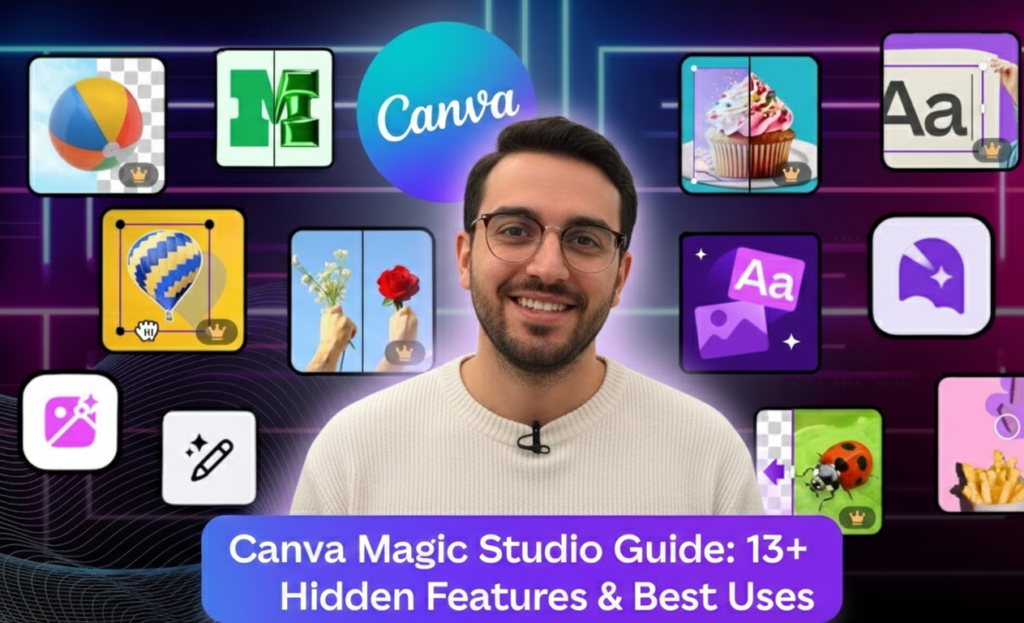
The solution is Canva Magic Studio. Canva Magic Studio, which was introduced as an all-inclusive AI-powered suite, unifies Canva’s AI capabilities into a single, potent platform. It does more than just “help” you create; it automates the time-consuming aspects of creation, such as writing, resizing, editing, and animating, allowing you to concentrate on strategy and expansion.
We’re going deep with this Canva Magic Studio Guide. We’ll reveal the top 13 secret Canva Magic Studio Features and applications of Canva Magic Studio that will turn your “busy” workflow into “productive.”
Canva Magic Studio Features → Magic Switch → The King of Repurposing
- Ideal For: Social media managers and multi-platform content producers.
Rebuilding a design by hand for Pinterest, LinkedIn, and Instagram Stories is a thing of the past. For enthusiasts of productivity software reviews, Magic Switch is perhaps the most potent tool in the package.
What it does: It rapidly converts your design into any format. An Instagram post can be converted into a presentation document, and a blog post summary can be turned into an email.
Hidden Use: Without ever leaving the editor, use Magic Switch’s “Translate” tool to quickly localize your content for audiences around the world in languages like Spanish or French.
🎯 Pro Tip: Use Magic Write in conjunction with this to condense a lengthy Whiteboard session into a concise blog post.
Quit starting from scratch while designing. Create once, then use it everywhere.

Bring Ideas to Reality with this:
Canva Magic Studio Features → Magic Grab → The “Photoshop” Killer
- Ideal For: e-commerce sellers and product photographers.
Have you ever shot a fantastic picture but wished the subject was a little bit to the left? Magic Grab functions similarly to a sticker maker for your own images.
How it operates: After analyzing your image, it extracts the subject from the background and transforms it into a resizable, moveable element. AI is used to automatically fill up the background.
Ideal Use: Ideal for online sales of digital templates. Make a mockup, then use Magic Grab to make it simple for your clients to rearrange components without disrupting the layer hierarchy.
🚀 Micro-CTA: Use Magic Grab on an outdated product image right now. Move the item. Does the background appear smooth?

Canva Magic Studio Features → Magic Expand → Repairing Unhealthy Crops
- Ideal For: creative professionals who require hero photos for their web hosting.
Everybody has been there: Your website header needs a big horizontal shot, yet you have a gorgeous vertical photo. The quality is ruined by zooming in.
The Fix: Magic Expand employs generative AI to “paint” the image’s missing portions. From a 9:16 original, it creates a flawless 16:9 shot by extending the landscape beyond the frame.
Hidden Tip: Use it to give a congested photo “breathing room” so you can put text over it.
Find your Fit:
Canva Magic Studio Features → Magic Edit → The Wizard of Gen AI
- Ideal For: Low-cost marketing software for small business owners.
Do you need to switch a model’s red shirt to a blue one? Or perhaps exchange a laptop for a bouquet of flowers? With Magic Edit, you can alter an area by selecting it and typing a prompt.
Why it matters: Not every variant requires costly photo shoots.
For instance, a real estate agent can practically prepare an empty room by using Magic Edit to “add a modern beige sofa” to a picture.
Canva Magic Studio Features → Magic Eraser → Make Your Images Look Better
- Ideal For: High-paying freelance tools for refining deliverables.
Magic Eraser is for the details, as opposed to the typical background remover. Power wires, trash cans, and people are all removed, and the background is smoothly rebuilt.
📌 Best Practice: For greater accuracy, use tiny brushstrokes. It is essential to have in your toolkit of graphic design software.

Canva Magic Studio Features → Magic Morph → Inventive Typographic Effects
- Ideal For: Headers that catch attention and thumbnails.
One of the more enjoyable elements is this. Using your cue, Magic Morph transforms flat words or shapes into 3D-textured creations.
Try the following suggestion: “Inflated foil balloon, shiny gold” instead of “Freshly baked gingerbread cookie with icing.”
📈 Engagement Tip: To boost CTR (Click-Through Rate), use distinctive 3D lettering in your YouTube thumbnails.
Canva Magic Studio Features → Magic Write → Your AI Writing Helper
- Ideal For: Getting past writer’s block.
OpenAI’s technology is the foundation of Magic Write, which has been modified for Canva. It can create social media captions, blog outlines, and reword problematic language.
Brand Voice Feature: The Brand Voice filter is a hidden gem. You can submit your brand guidelines, and Magic Write will make sure that each caption reflects your personality—be it professional, amusing, or sympathetic.
SEO Context: Use it to create descriptions of your top design tools 2025 listicles that are packed with keywords.
Create Images Effortlesly:
Canva Magic Studio Features → Magic Animate → Real-Time Motion
- Ideal For: Novices using video editing software.
Images that are static are dull. Magic Animate evaluates your design and recommends the elements’ ideal animation style.
The “Hidden” Control: Don’t simply select “Animate.” To change the intensity and pace, navigate to the options. Animations that are slow and nuanced tend to look more professional than those that are quick and chaotic.

Canva Magic Studio Features → Magic Media → Video & Text-to-Image
- Ideal For: Creating original images when stock photos don’t work.
Not able to locate a picture of “a cyberpunk cat eating pizza on Mars”? Make it. Magic Media uses language prompts to produce pictures and brief videos.
New Feature: The “Text-to-Video” function is becoming better very quickly. It’s ideal for changing backgrounds in social media postings (Reels/TikToks), even though it’s not yet cinema-caliber.
How to Use Canva Magic Studio → Grab Text, Beat Sync & Magic Design
Grab Text → The Superpower of OCR
- Ideal For: Digitalizing outdated assets.
This is Magic Grab’s lesser-known relative. Grab Text recognizes text in a flat image (such as a screenshot or a picture of a menu) and converts it into editable text.
Quick Case: Simply upload the JPG, click Grab Text, and correct the misspelling in a matter of seconds if you misplaced the source file for an old flyer.
Beat Sync → Ideal Timing
- Ideal For: Reel and TikTok producers.
It takes a lot of work to edit a video to music. Beat Sync automatically synchronizes your clips with the beat of the audio track you’ve selected.
Why use it: Videos that sync to the beat are more gratifying and have a high retention rate, which is important for US TikTok consumers.
Magic Design → The “Blank Page” Remedy
- Ideal For: People that need quick layouts but are not designers.
Magic Design will create eight to ten fully designed templates for you to select from when you upload a photo and make a heading.
Context: It’s not limited to posts on social media. In just a few seconds, “Magic Design for Presentations” can create a complete slide deck outline and design.

Canva Magic Studio Features → Color Search & Layers Panel (Hidden Gems)
- Ideal For: Accurate editing.
Alright, these are crucial “hidden” workflow enhancers, but they aren’t “Magic” AI.
Layers Panel: Lastly, Canva features a layers panel that resembles Photoshop. Select “Show Layers” with a right-click to handle intricate patterns.
Color Search: To filter elements by a certain color, type “Neon Blue” or a particular hex code in the search field.
Use Human Psychology to Hook Viewers:
How to Use Canva Magic Studio → Growth Strategies for Audience Involvement
It’s excellent to use these tools, but your development depends on how you use them. To provide you with this approach, we examined insights from leading creators, including Google’s own creator advice:
- 🎥 The video “Human Connection” (Magic Media + Beat Sync) The creator teams at Google stress that loyalty is fueled by human connection.
Plan: Make a basic “face-to-camera” opening video.
Canva Fix: Use Magic Edit to tidy up your disorganized room background and Beat Sync to add a popular audio track. This fosters trust without the need for a studio setup. - 📊 Engagement > Followers in the “Value First” Carousel (Magic Switch) You must offer value in order to gain engagement.
Method: Compose an in-depth blog post (like this one!).
Canva Fix: Create a 10-slide Instagram carousel out of the blog article by using Magic Switch. Carousels tell algorithms that your content is important by keeping users on your article for longer. - 📅 Batching for Consistency (Magic Write + Brand Voice) The most difficult aspect of growth is consistency.
Plan 30 days’ worth of content all at once.
Canva Fix: Make use of Magic Write in your unique brand voice to produce thirty captions. Next, insert those captions into templates using Canva’s “Bulk Create” automation tool.

Canva Magic Studio Guide → Does It Live Up to the Hype?
Canva Magic Studio is a strong candidate for 2025 if you’re searching for AI solutions for businesses or the greatest software for creators. It makes upscale design more accessible. It is unparalleled for everyday content creation, but it won’t take the position of a skilled designer for intricate branding.
What is Canva Magic Studio?
Canva Magic Studio is a built-in collection of AI-powered tools inside Canva that helps you design, write, edit, and animate visual content – all without leaving the Canva editor. It includes tools like Magic Write, Magic Edit, Magic Design, Magic Switch, Magic Animate, and more. Think of it as your personal AI design assistant that lives right inside your favorite graphic design software.
When was Canva Magic Studio launched?
Canva officially launched Magic Studio in October 2023 at Canva Create, their annual product event. Since then, it has grown from a handful of AI features into a suite of 20+ AI tools integrated throughout the entire Canva platform. In 2026, Magic Studio is deeply woven into every part of Canva – from the editor to collaboration comments.
Is Canva Magic Studio a separate app or part of Canva?
Magic Studio is not a separate app – it is fully integrated into your existing Canva account. You do not need to download anything extra. Once you are logged into Canva (free or Pro), you can access Magic Studio tools directly inside any design project. Some tools are available for free users, while the full suite requires a Canva Pro or Canva Teams subscription.
Who can use Canva Magic Studio?
Canva Magic Studio is designed for everyone – beginners, professional designers, content creators, marketers, educators, freelancers, and business owners. You do not need any prior design experience to use it. Whether you are a social media manager in the US creating daily content, a small business owner in the UK building brand materials, or a student in India working on a presentation -Magic Studio is built to work for you.
Is Canva Magic Studio free?
Some Magic Studio features are available on the free Canva plan – but access is limited. Free users typically get a set number of monthly AI uses (around 50 uses for features like Magic Write). To unlock unlimited access to the full suite -including Magic Switch, Brand Kit AI, Magic Media (text-to-video), and on-brand design generation – you need Canva Pro (approximately $15/month) or Canva Teams (approximately $10/person/month, billed annually).
Canva also offers a 30-day free trial of Canva Pro, which is a great way to test the full Magic Studio experience before committing.
How many free AI credits does Canva give per month?
On the Canva Free plan, you get limited monthly uses for Magic Studio AI tools – typically around 50 Magic Write uses, limited Magic Media image/video generations, and restricted access to tools like Magic Switch. On Canva Pro and Teams, you get “high access” (approximately 500+ uses per month, pooled for team accounts). Enterprise plans offer even higher access tailored to organizational needs.
Is Canva Pro worth it for Magic Studio?
For most content creators, marketers, and small business owners – yes, Canva Pro is worth it. Here is why: at ~$15/month, you get unlimited access to 20+ AI tools, a premium template library, Brand Kit, 100 GB of cloud storage, and the ability to resize designs instantly with Magic Switch. If you create visual content more than a few times per week, the time you save using these content creation software tools far outweighs the monthly cost.
That said, if you only design occasionally, the free plan with its limited AI uses may be enough to get started.
Can teachers and students get Canva Magic Studio for free?
Yes! Canva offers Canva for Education – a completely free plan for teachers and students at verified K–12 schools, which includes access to many Magic Studio features at no cost. Registered nonprofits can also apply for Canva for Nonprofits, which grants Pro-level access for free. These are separate from the standard free trial, so educators and students in the US and globally should check their eligibility on Canva’s official website.
How do I access Magic Studio in Canva?
Accessing Magic Studio is simple:
1. Log into your Canva account at canva.com
2. Open any existing design or start a new one
3. Look for the “Magic Studio” button on the left sidebar or use the Apps panel
4. Alternatively, right-click on any image, text, or element inside your design to see available AI tools
In 2026, Magic Studio tools also appear contextually – meaning the right AI tool shows up right when you need it, without having to search for it.
What is the difference between Magic Write and Magic Design?
Great question – these two are often confused:
Magic Write is Canva’s AI writing tool (similar to an AI writing assistant). It generates text – captions, headlines, blog drafts, email copy, and social media posts – directly inside your Canva design or Canva Docs.
Magic Design is Canva’s AI layout tool. You type a short prompt (e.g., “create a birthday invitation”) and it instantly generates a fully designed template with images, fonts, and structure – ready to customize.
In short:
Magic Write = AI for words. Magic Design = AI for layouts.
What is Magic Switch in Canva, and how does it work?
Magic Switch is one of the most powerful – yet underused – tools in Canva Magic Studio. It does two things:
1. Resize & Reformat: Converts your design from one format to another in a single click (e.g., turning an Instagram post into a YouTube thumbnail, a presentation slide, or a printed flyer) – with AI adjusting the layout automatically.
2. Translate: Translates all text inside your design into another language, making it a go-to tool for creators targeting global or multilingual audiences.
This is a Canva Pro feature and is one of the best automation tools for creators who repurpose content across multiple platforms.
Can Canva Magic Studio create videos?
Yes! With Magic Media (Text-to-Video), you can type a text prompt and Canva will generate a short AI video clip (up to 8 seconds). In 2026, this feature is powered by advanced AI models including Runway and VEO3. Additionally, Magic Animate can take any still design and automatically apply animations and transitions to turn it into a short video.
For longer video projects, AI Video Highlights can identify the best moments in your footage and compile them into short, shareable clips – making it one of the most practical video editing software tools inside a design platform.
What is the Magic Grab feature in Canva?
Magic Grab lets you click on the main subject of any photo – a person, a product, an animal – and separate it from its background as if it were a sticker. Once grabbed, you can:
1. Move or resize the subject independently
2. Place a new background behind it
3. Layer it over other design elements
It works similarly to Photoshop’s subject selection tool, but with a single click and no technical skills required. This makes it a favorite among e-commerce sellers, bloggers, and social media managers who want to create clean product photos fast.
What is Canva Magic Morph, and what can I use it for?
Magic Morph transforms any text or shape into a styled visual object based on a text prompt. For example, you can type “make this look like melting gold” or “turn this text into neon light” and Canva’s AI will apply that effect to your element.
It is a fun and creative tool used by:
1. Social media designers creating eye-catching headers
2. Marketers building promotional graphics
3. Content creators working on YouTube thumbnails or branded posts
It is available on Canva Pro and is one of the lesser-known gems in Magic Studio.
How do I use Ask @Canva inside a design?
Ask @Canva is Canva’s in-editor AI assistant that you access through the comments panel.
Here is how to use it:
1. Open any design and click the comment icon (top right)
2. In your comment, type @Canva followed by your question or request
3. Canva’s AI will respond with design suggestions, feedback, visual edits, or answers- right inside your design
4. It is design-aware, meaning it reads your current design context and gives relevant suggestions without you having to explain everything from scratch.
Is Canva Magic Studio better than Adobe Express?
Both are excellent, but they serve slightly different users:
For most content creators, marketers, and small businesses, Canva Magic Studio wins on value and speed. For graphic design professionals who need pixel-perfect precision, Adobe Express or Adobe Creative Cloud may be more appropriate.
Can I use Canva Magic Studio content commercially?
Yes, you can use Canva-generated content for commercial purposes as long as you comply with Canva’s AI Product Terms. A few important points:
You may not have exclusive rights to AI-generated outputs – other users could generate similar results using similar prompts
For trademark purposes, do not rely solely on AI-generated brand names or logos without doing proper legal searches first
It is best practice to disclose AI-generated content to your audience when publishing
If you are selling AI-generated work (e.g., sell digital templates online or publishing AI-assisted books), Canva recommends seeking legal advice for commercial uses
Are you prepared to change your content? Don’t merely read about it. After opening Canva and uploading a picture, select “Magic Edit.” You have direct access to the design of the future.
🚀 Continue reading on our Blog for additional advice about SaaS comparison 2025 and digital marketing automation technologies.